
The following instructions will allow you to edit the affiliate logo's within the footer of your website.
*If you do not have any affiliate logo's showing within the footer area then this will not apply to your website.
Please follow the instructions thoroughly and avoid skipping any steps.
We recommend the following changes be applied on a Desktop computer using a large screen. The page is not suited for editing on a mobile device.
Log in
- Access the login page by entering /login to the end of your domain name in a browser address bar.
- Enter the username and password
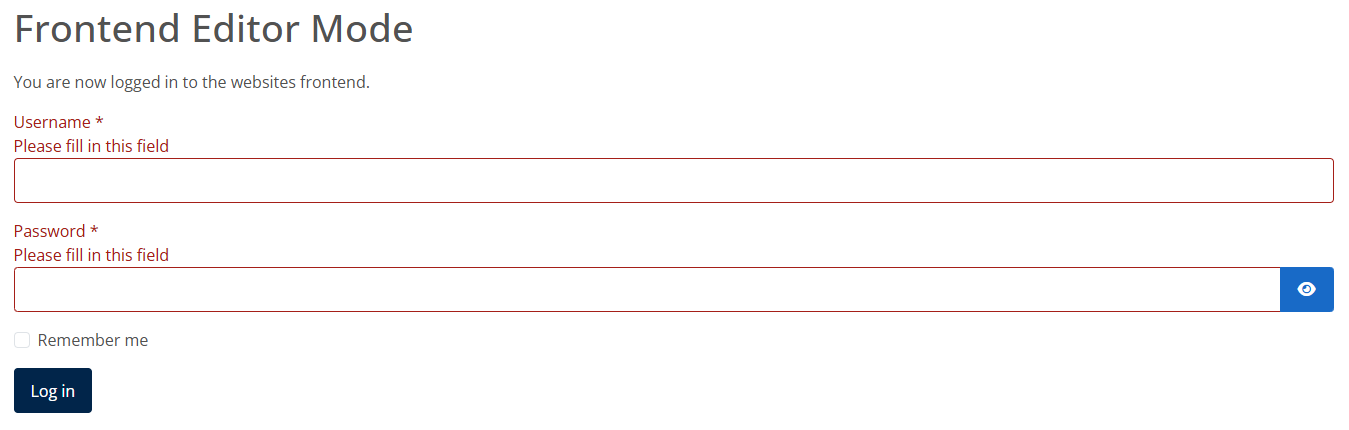
You should now be logged in to the website.
Edit Affiliate Logo's
If your website has affiliate logo's showing you can change them or add additional logo's by following;
- Navigate to the website footer where the affiliate logo's are displayed i.e. 'Zoopla' etc.
- Hover over the affiliate logo's ‘container’ and an additional ‘Edit’ button will appear to the right corner which you should click in to edit:

- Click in to 'Options' as highlighted on the image below which will load the illustrated fields:
- The fields on display will correspond with the affiliate logo's showing on your website footer. You can add, remove or re-order the existing logo's.
- The following buttons will allow you to add (green) or remove (red) or move (blue) logo's.


- You can move logo's up and down by selecting the blue cross and dragging to the desired position, or by simply pressing the up/down arrows.

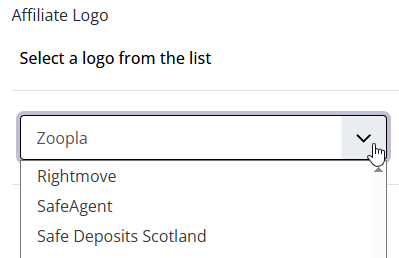
- The logo's in the upper area are selected from a repository and its likely most common affiliate logo's will be available here, which you should browse and check first.
- Under 'Custom Affiliate Logo' you can upload and add custom logo's which are not available in the repository. Due to how these load they will always appear at the end of all others.
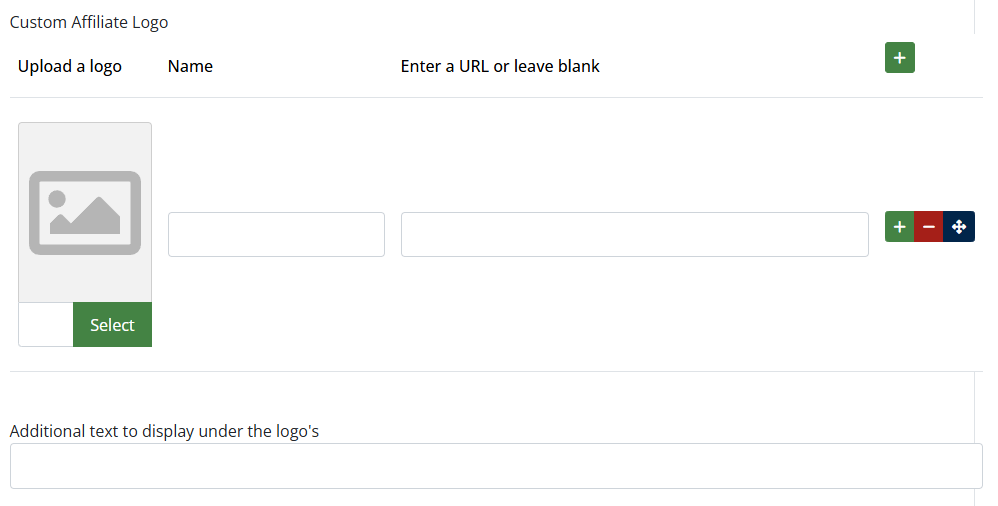
- If you wish to link any of the logo's out to their associated website, such as your property listings on Zoopla, then you can enter the full url for each.
- You can also enter a single line of additional text that will appear below the logo's, such as registration numbers and so on.
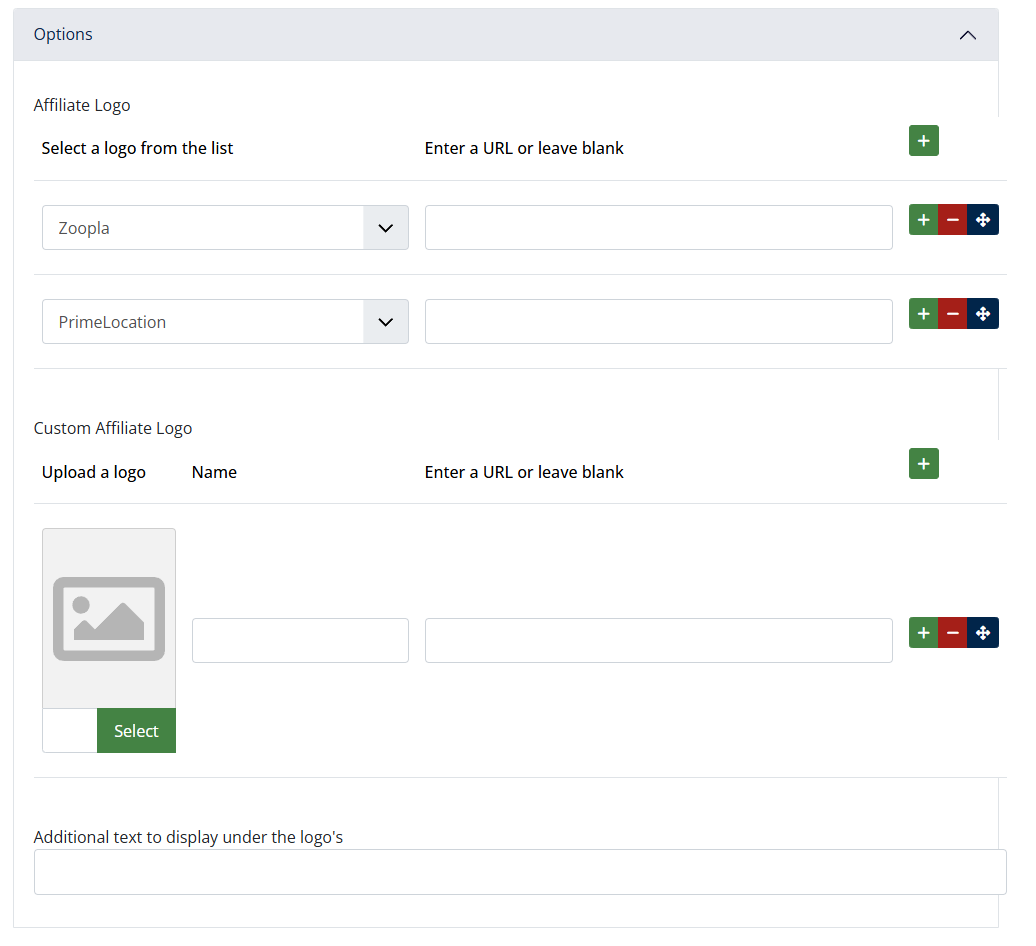
*The only items you should amend within the module are highlighted above. Amending anything outside of this could cause problems with how it displays on the frontend of the website, therefore please avoid.
Preparing Affiliate Logo's
Do not upload images in their original size, as taken from the original source or affiliate supplier. They will likely be far too big and will cause the page to load slowly if they are not cropped and compressed first, which will compromise SEO.
- Crop your image using an editing application like Microsoft Paint or similar. We recommend cropping the logo to a height of 45 pixels in a .png format and saved with a transparent background, where possible. This will match those already displayed on your website.
- Compress the image after you have cropped it. The following website will allow you to do this fairly easily for free- https://compressor.io, or you may choose another of your choice.
- The image is now ready to upload to the website by clicking on the 'Select' button above, to locate the newly saved file on your local device, selecting, and clicking 'Insert'.
Close the module editor
It is important to follow these steps to avoid locking yourself out of future module edits.
- When you are finished editing the module, click the 'Cancel' or 'Save' button to exit the editor. This makes sure the article is 'checked-in' to the Content Management System.
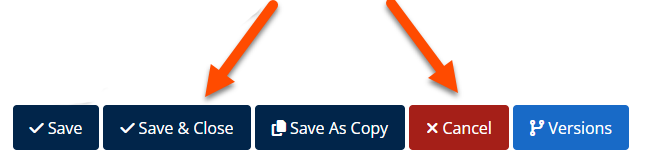
*Failure to do this will lock the page from future edits and will require our input to unlock the page via the backend.
Log out of the website
- Make sure you have saved any changes and click 'Save' or 'Cancel' within the editor.
- Navigate to the login page /login
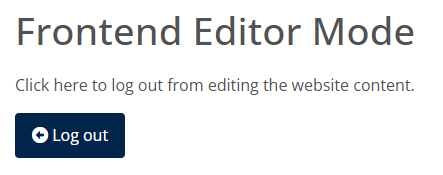
- Click the Log Out button
Please note:
* Unlike with static page edits, Affiliate Logo changes do not have version history therefore any deletions or mistakes cannot be undone.