
The following instructions will allow you to edit the side bar modules on the sub pages of your website. Typically these are on the Valuation or Register pages.
*If you do not have a side bar showing on any web page then this will not apply to your chosen theme. If you are unsure, please ask your web designer.
Please follow the instructions thoroughly and avoid skipping any steps.
We recommend the following changes be applied on a Desktop computer using a large screen. The page is not suited for editing on a mobile device.
Log in
- Access the login page by entering /login to the end of your domain name in a browser address bar.
- Enter the username and password
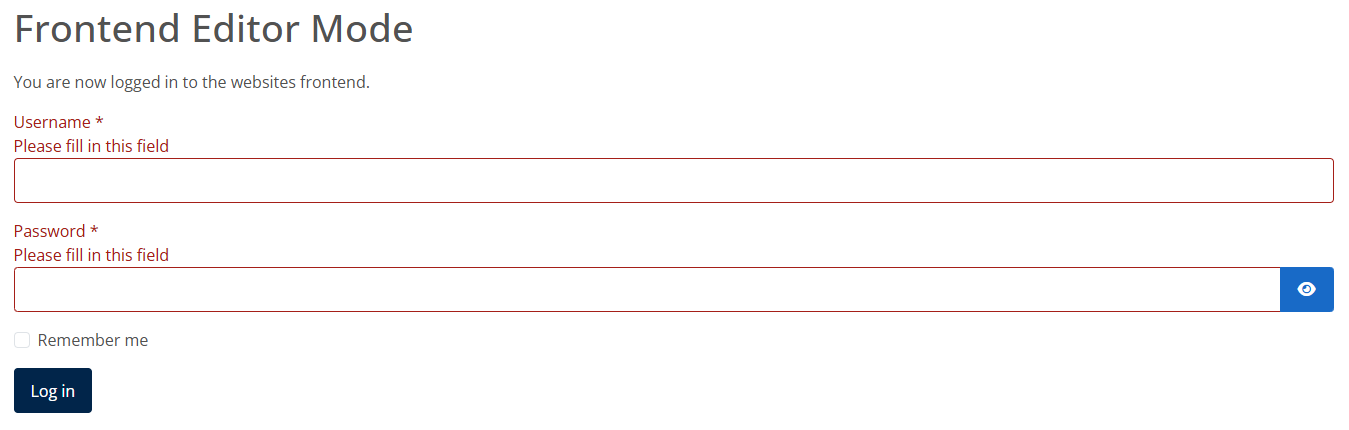
You should now be logged in to the website.
Edit Side Bar Module
If your website has a side bar module present you can change the image and its text by following;
- Navigate to any page where a side bar is displayed i.e. 'Valuation' or 'Register'.
- Hover over the side bar ‘container’ and an additional ‘Edit’ button will appear to the right corner which you should click in to edit:

- Click in to 'Options' as highlighted on the image below which will load the illustrated fields:
- The text fields on display will correspond with the text and/or image showing within your websites sidebar and you can amend any of them within the module with a like for like alternative.
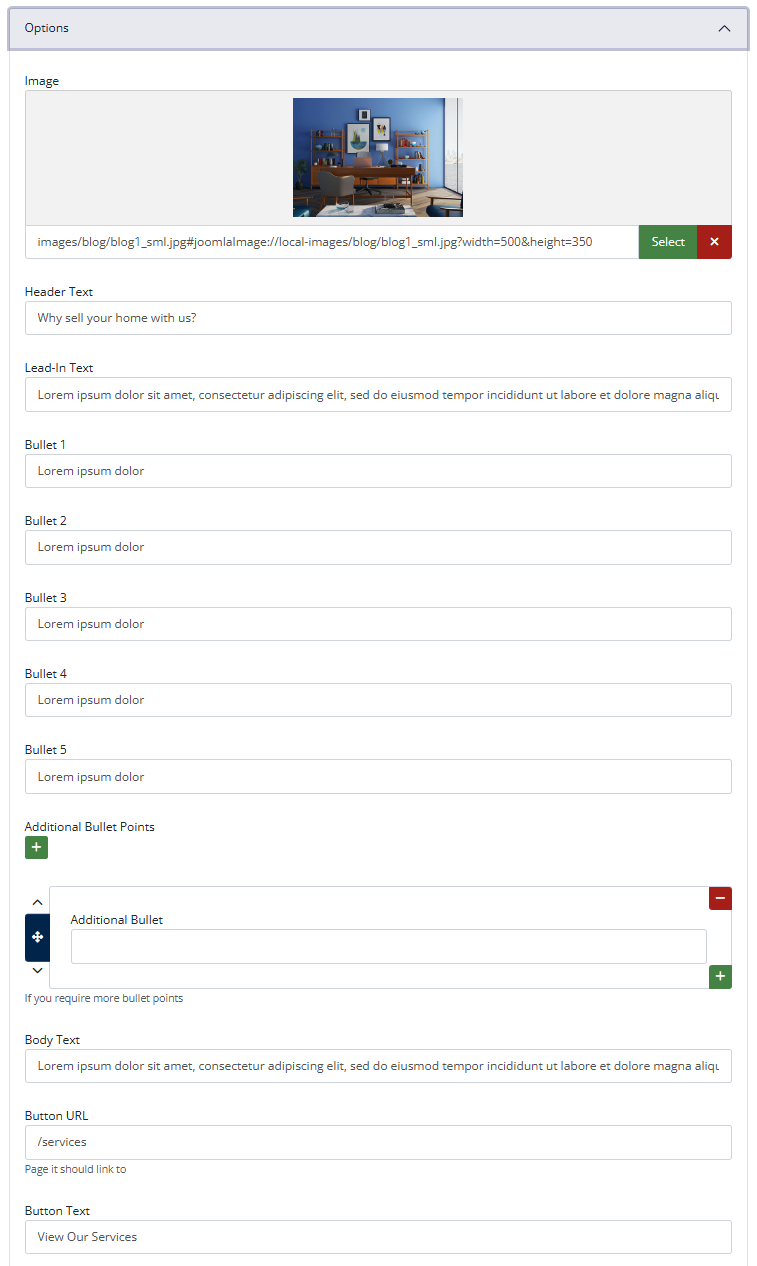
*The only items you should amend within the module are highlighted above. Amending anything outside of this could cause problems with how it displays on the frontend of the website, therefore please avoid.
Preparing Sidebar Images
Do not upload images in their original size, as taken from your camera or stock image website. They will likely be far too big and will cause the page to load slowly if they are not cropped and compressed first, which will compromise SEO.
- Crop your image using an editing application like Microsoft Paint or similar. We recommend cropping the photo to approx. 500x300 pixels in a .jpg format. Your website designer will be able to confirm the exact sizing in relation to your chosen theme.
- Compress the image after you have cropped it. The following website will allow you to do this fairly easily for free- https://compressor.io, or you may choose another of your choice.
- The image is now ready to upload to the website by clicking on the 'Select' button above, to locate the newly saved file on your local device, selecting, and clicking 'Insert'.
Close the module editor
It is important to follow these steps to avoid locking yourself out of future module edits.
- When you are finished editing the module, click the 'Cancel' or 'Save' button to exit the editor. This makes sure the article is 'checked-in' to the Content Management System.
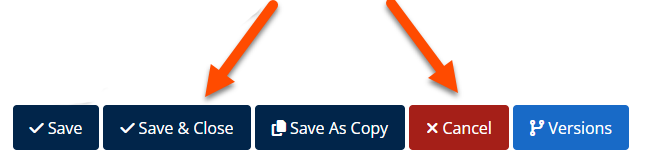
*Failure to do this will lock the page from future edits and will require our input to unlock the page via the backend.
Log out of the website
- Make sure you have saved any changes and click 'Save' or 'Cancel' within the editor.
- Navigate to the login page /login
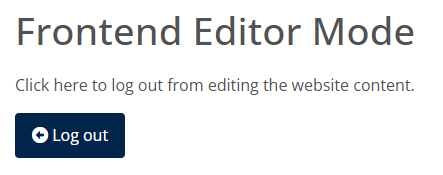
- Click the Log Out button
Please note:
* Unlike with static page edits, Sidebar changes do not have version history therefore any deletions or mistakes cannot be undone.