The following instructions will allow you to create/edit/delete development posts on your website.
Please follow the instructions thoroughly and avoid skipping any steps.
We recommend the following changes be applied on a Desktop computer using a large screen. The page is not suited for editing on a mobile device.
Insert intro images (listings page)
Insert full article image (full development post)
Log in
When the website is live against the domain name you will be able to edit the website development feature using the login credentials supplied to you by the Design team.
- Access the login page by entering /login to the end of your domain name in a browser address bar.
- Enter the username and password
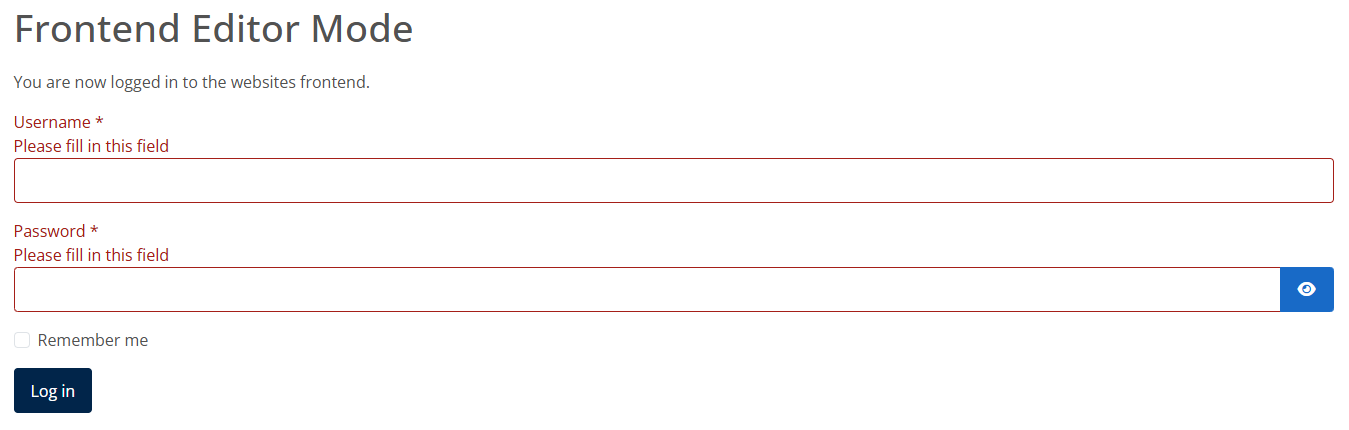
You should now be logged in to the website.
Please note:
* While logged into the website you will not be able to see any property data or its features when browsing the property pages. This is deliberate, but does not affect what the public can see when viewing the website front-end. Once logged out of the website you will be able to browse the full pages normally again.
** Please keep the login credentials safe and avoid giving them out to other people.
*** Please also avoid changing the above password. It is important the password remains secure, as a weak password could compromise the security of the website.
**** Any changes applied to the website via this method are at your own risk. Resolving any problems that arise as a result of changes applied by you using the development editor may incur a charge by us to resolve.
Create a new development post
Click here if you instead need to edit an existing post.
- At the top of the page click the button called ‘Create a New Development Post’.
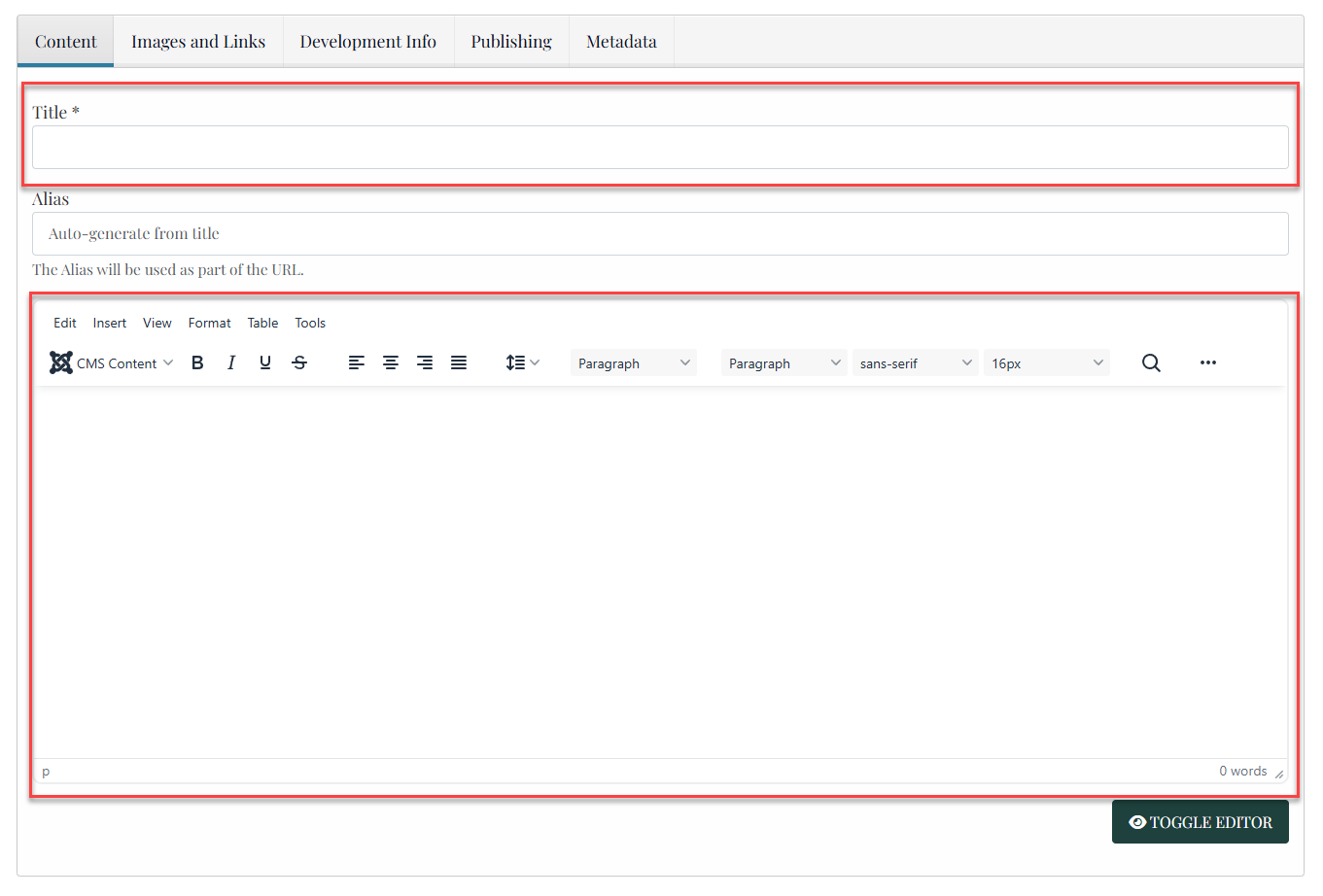
- This will open up a new text editor window, which will be the new development post:
- Give the post a Title (before you can save).
- If you wish to add your own formatted content then you can enter this straight into the opening editor window as seen above. Our standard Blog guide will assist with this option here.
- Alternatively, our Development feature typically has a pre-formatted design either in a list or grid layout. To utilise this style please click into the tab along the top 'Development Info' where you will be presented with the following fields;
- When populated the information will be presented on the full development post, providing a quick view of key information such as a developer logo, price range and a link to their website and brochure. These are optional do you can populate all or only select fields.
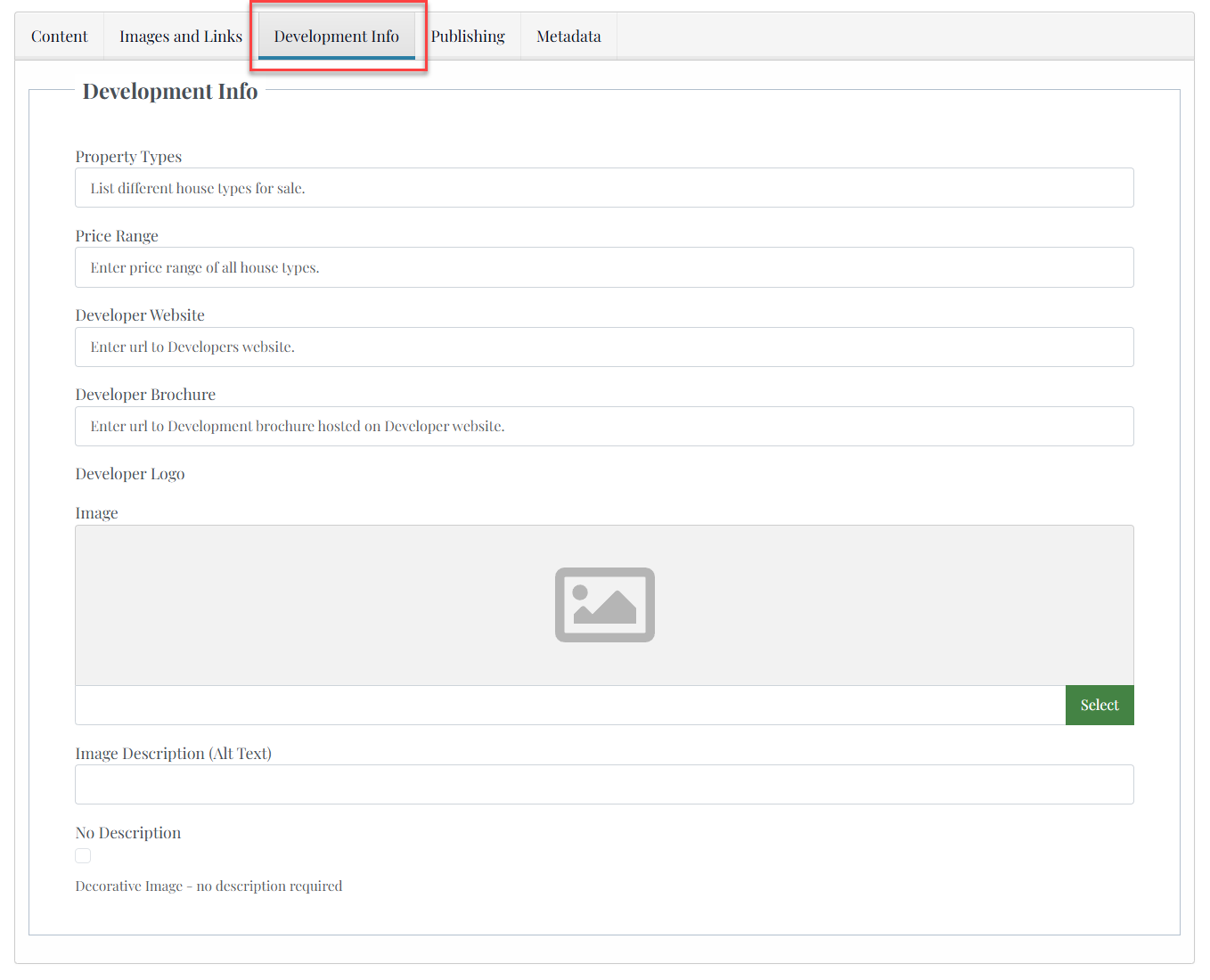
Top Tip:
If you don't wish to use the pre-formatted layout and are going to enter your own custom content, then we advise to save a copy of your development text along the way, in a 'Notepad' file on your computer. You never know when your internet connection might drop out causing you to lose your unsaved article. If you click the 'Toggle Editor' tab on the editor this will allow you to copy and save the entire HTML content generated for your article, saving you time if its ever needed.
Insert an intro image (listings page)
- Prepare an image locally sized at 400 x 300 pixels.
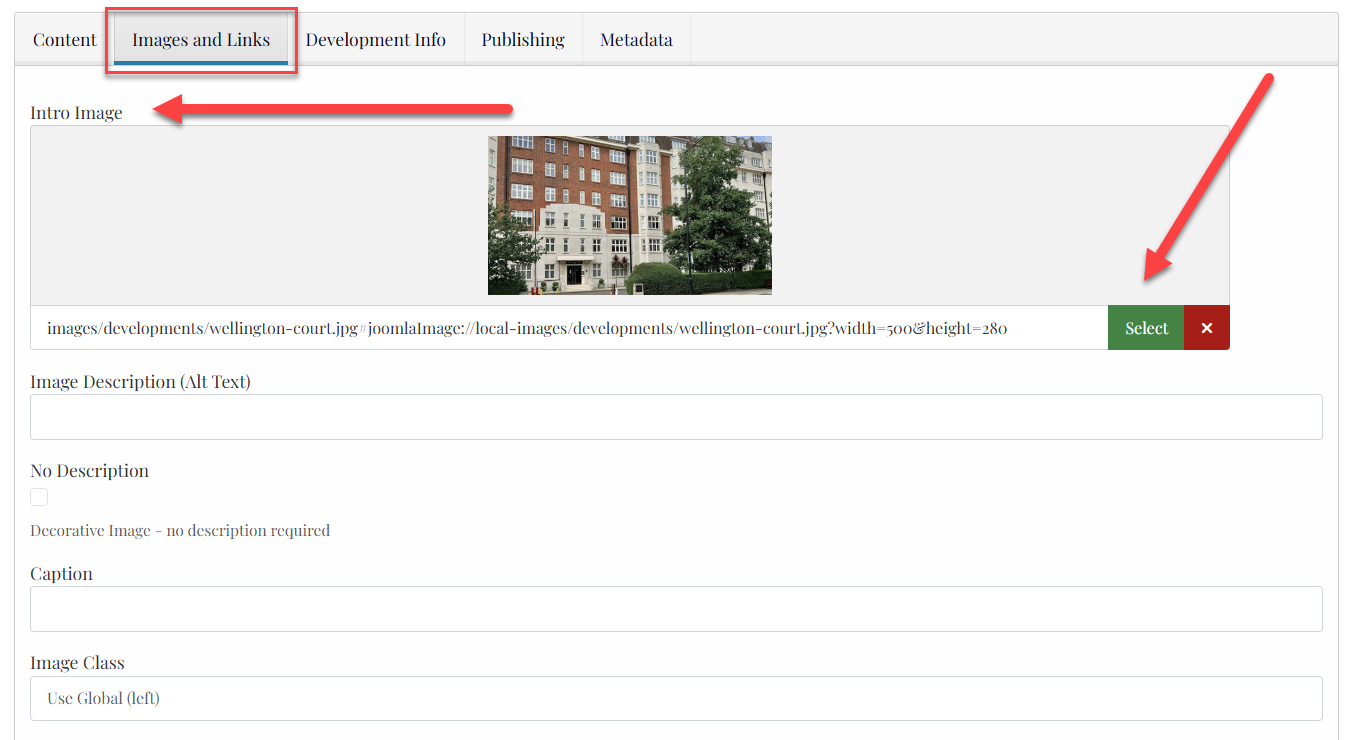
- Click in to the ‘Images and Links’ tab along the top of the editor.
- You will see two options to add an 'Intro Image' and a 'Full Article Image' on the page.
- To add an intro image to the post that will display on the listings page, click 'Select' on the upper 'Intro Image' selection.
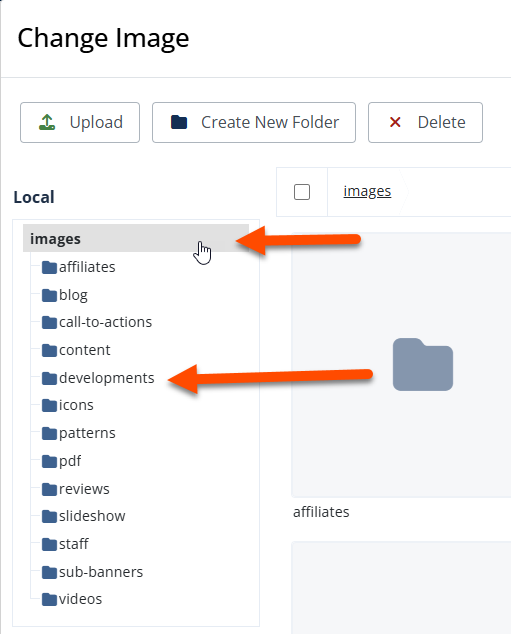
- You will be presented with the Media Gallery in a pop-up box. On the left side click 'Images' and then click into the 'Development' folder;
- Once you are within the 'Development' folder, click 'Upload' to locate an image file on your local device hard drive.
- Locate the newly uploaded image, select it, then 'Insert'.
- Save the development post.
This will now display an image alongside the intro text on the initial listings page:
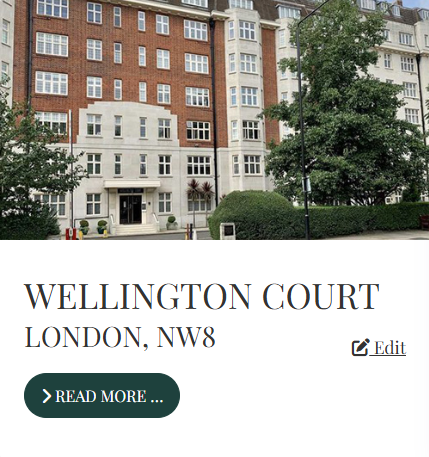
*It is important to resize images on your computer locally to the correct dimensions. Failure to do this, and uploading images which are too big in both dimensions and file size could cause problems with the page layout or load times.
** Appearance may vary depending on theme design.
Insert a full article image (optional)
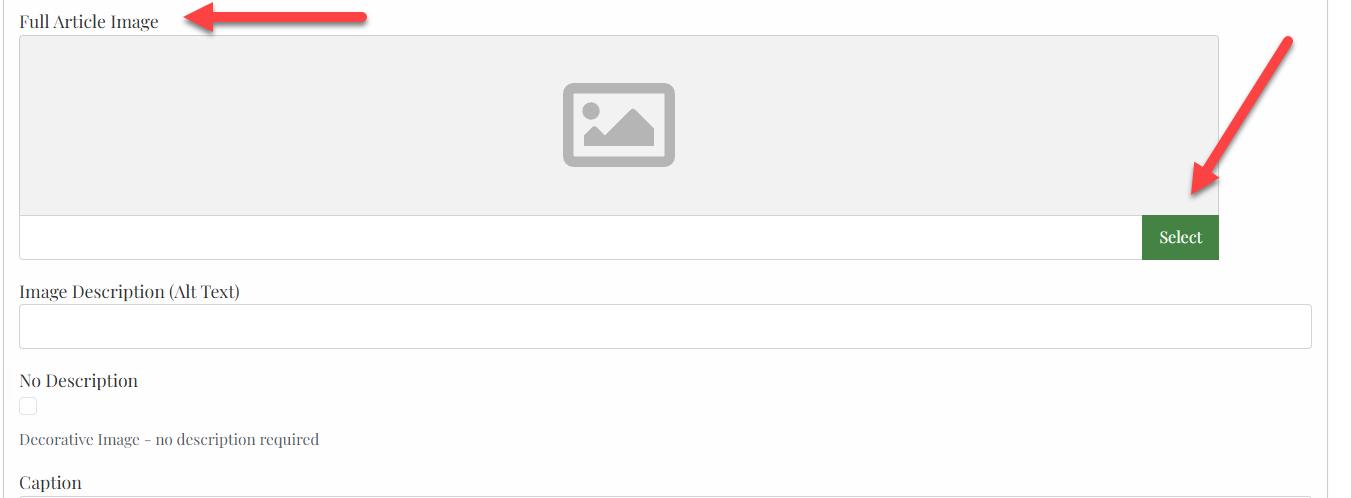
- Prepare an image locally sized at 1400 x 350 pixels.
- Click in to the ‘Images and Links’ tab along the top of the editor.
- You will see two options to add an 'Intro Image' and a 'Full Article Image' on the page.
- To add an intro image to the post that will display on the listings page, click 'Select' on the upper 'Intro Image' selection.
- You will be presented with the Media Gallery in a pop-up box. On the left side click 'Images' and then click into the 'Development' folder;
- Once you are within the 'Development' folder, click 'Upload' to locate an image file on your local device hard drive.
- Locate the newly uploaded image, select it, then 'Insert'.
- Save the development post.
This will now display an image alongside the intro text on the initial listings page:
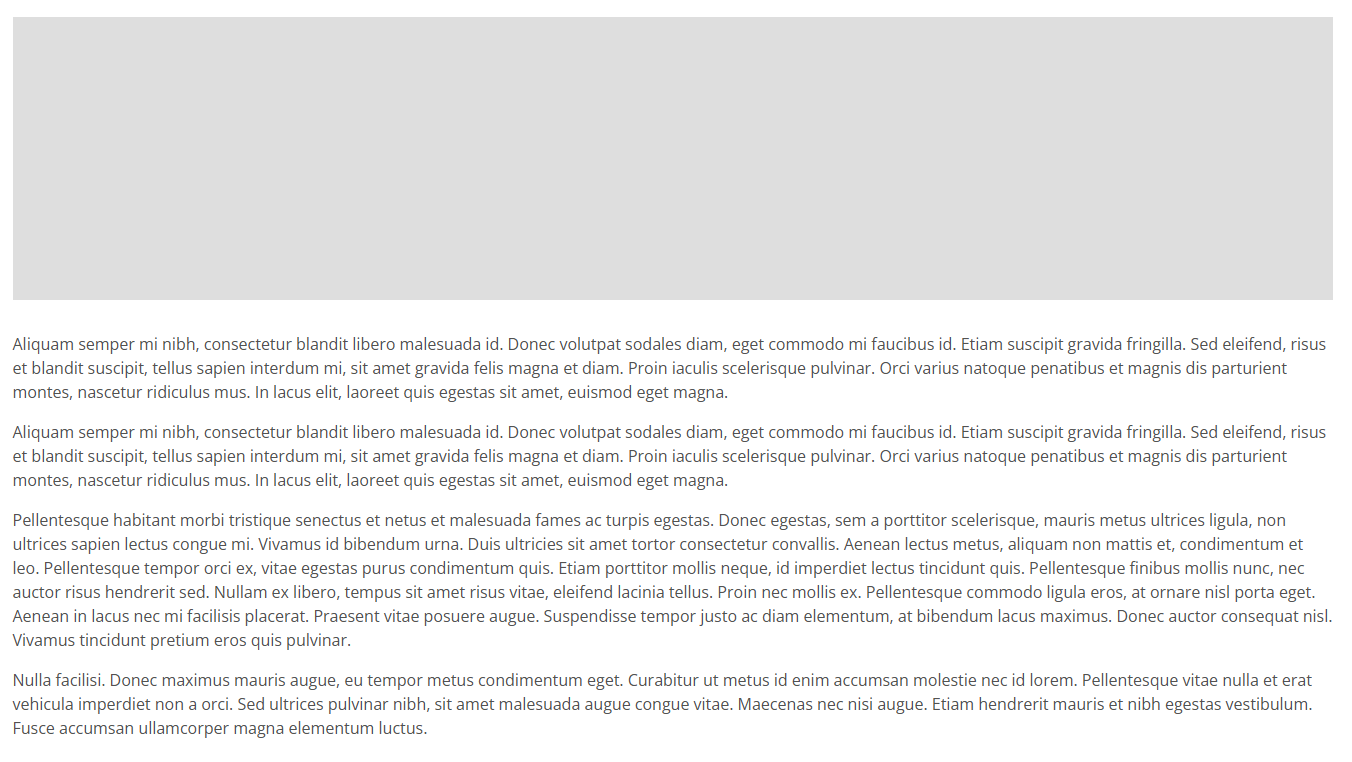
*It is important to resize images on your computer locally to the correct dimensions. Failure to do this, and uploading images which are too big in both dimensions and file size could cause problems with the page layout or load times.
** Appearance may vary depending on theme design.
Publishing Options
Status
You can choose when to publish a development post via the ‘Publishing’ tab situated above the editor.

- Status– allows you to choose whether the development post is published (live on the website), archived or trashed (deleted).
- Published – Put the development post live on the websites Development page.
- Unpublished – This will remove it from the development page, but will not delete the post from the backend of the website.
- Archived – This will remove it from the development page, but will not delete the post from the backend of the website. It will instead move the post into ‘archive’. This is the best option to choose if you do not want to fully delete the article, as it keeps the development posts tidy within the content management system.
- Trashed – This will fully delete the post from both the web page and backend of the website. Select this option if you will never want to use the post again. *Once deleted it cannot be recovered.
Other Options
- Category– allows you to choose which category/page the development post is published to. This is only usually relevant when multiple development pages are in use, as the category will determine which page they appear on. For a single development page, the 'Development Posts' category will be the default.
- Publish Start/End Dates– allows you to choose when the development post is published to the frontend of the website for public viewing. If you do not define anything here it will post immediately.
Meta data
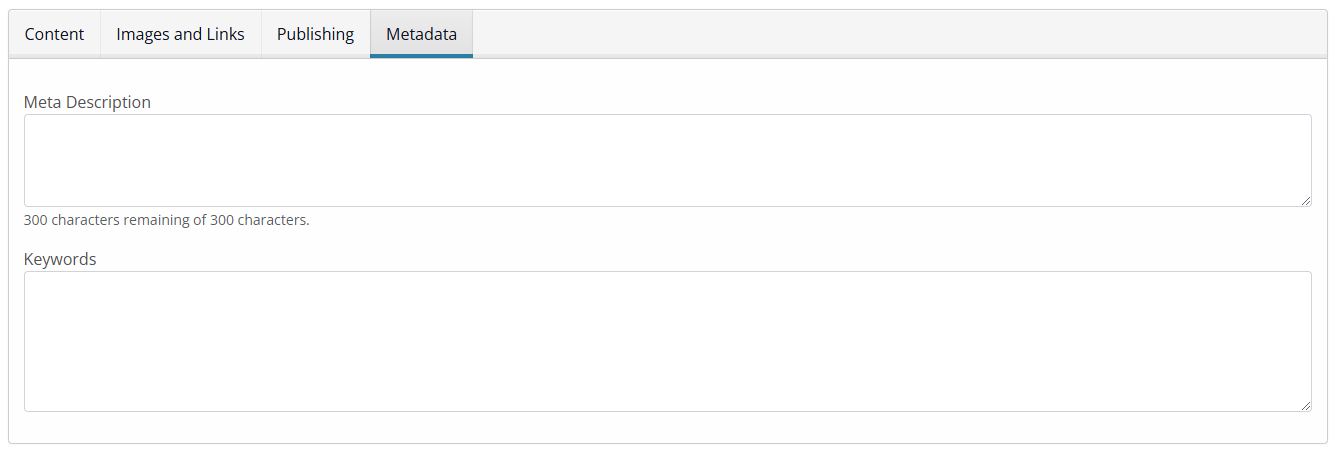
It is advisable to enter a Meta Description for each development post to aid search engine optimisation:
Please refer to our online SEO Guide for more information on how best to populate these fields.
Edit an existing development post
- Once logged in to the Frontend Editor, from the websites main menu navigate to the Development page on your website and the development post you wish to edit.
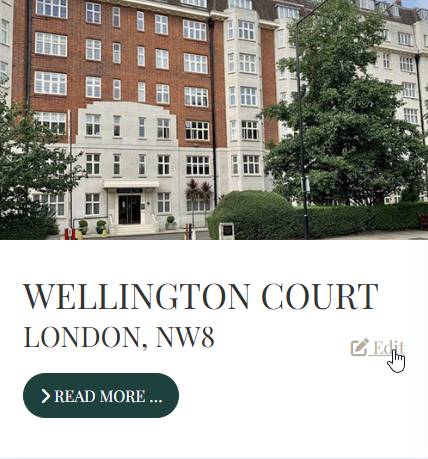
- Click the 'edit' button as illustrated below;
- The text editor will open. Click into the 'Development Information' tab along the top and from here you can make and save your changes to your chosen development post. This can be repeated for each post that is on the page.
*Make sure to click the 'Cancel' or 'Save' button to exit the editor correctly. This makes sure the article is 'checked-in' to the Content Management System and any change is committed.
Delete a development post
- Click in to edit the development post
- Navigate to the 'Publishing' tab in the top sub menu
- Change the 'Status' to 'Trashed' or 'Archived'
- Click 'Save' which will remove it from the front-end of the website
Close the text editor
It is important to follow these steps to avoid locking yourself out of future article edits.
- When you are finished editing an article, click the 'Cancel' or 'Save' button to exit the editor. This makes sure the article is 'checked-in' to the Content Management System.
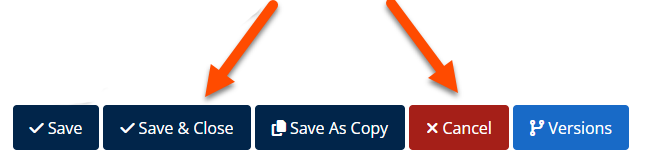
*Failure to do this will lock the page from future edits and will require our input to unlock the page via the backend.
Log out of the website
- Make sure you have saved any changes and click 'Save' or 'Cancel' within the editor.
- Locate and click the 'Logout from editor mode' button
- Click the Log Out button which will now log you out of the frontend editor and restore all pages as the public visitor will see.